Het bewegingsscript bouwen — Deel 1: Een script dat draait
Je script bestaat uit één regel: extends CharacterBody2D. In deze les voeg je de functie toe waar de rest van je spel in komt te staan — het kloppend hart dat Godot zestig keer per seconde aanroept.
Geschreven voor Godot 4.7.x — zie Godot-versies voor compatibiliteit.
Hier bouw je op verder
- Python Functies
- Python Parameters
Een oefenspoor ernaast
Programmeren leer je door het te doen, maar in je eigen game oefenen is lastig: als er iets niet werkt, weet je niet of het aan je code ligt of aan je scène.
Daarom loopt er vanaf hier een tweede spoor mee. Hier bouw je je game: elke les brengt het script dat je zelf typt een stap verder, en aan het eind draait je spel weer. Bij GDQuest oefen je elk concept los, in je browser, zonder Godot erbij — gaat het daar mis, dan ligt het aan de code, meer kan het niet zijn.
Ga naar Learn GDScript From Zero. Je werkt direct in je browser en hoeft niets te installeren.
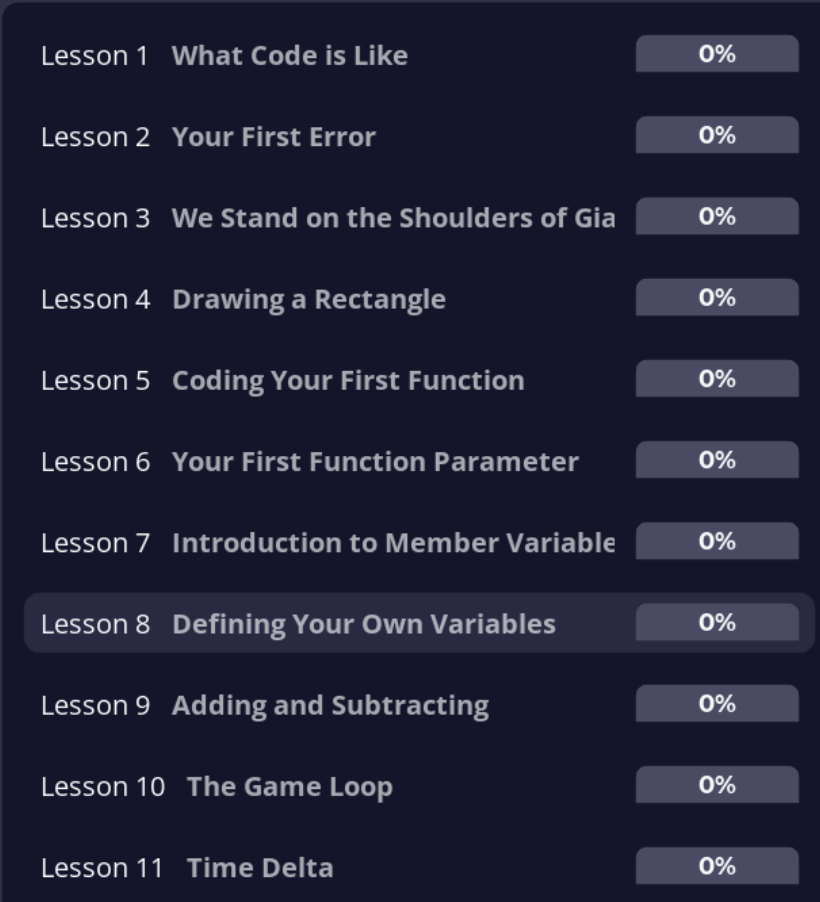
Begin met les 1 en 2. Die kosten samen een kwartier en leggen uit wat code is en hoe je een foutmelding leest. Les 3 gaat over extends — de regel die al in je script staat.
Vanaf hier staat in elke les van dit hoofdstuk zo'n blok, bij de regel die je net hebt geschreven:
Je hoeft de GDQuest-cursus niet uitgespeeld te hebben; je loopt hem ernaast door, in je eigen tempo.
Welke GDQuest-les hoort bij welke les hier?
| Wat je schrijft | In welke les | Oefenen bij GDQuest |
|---|---|---|
| extends | Je eerste eigen script | les 3: We Stand on the Shoulders of Giants |
| func en de game loop | Deel 1: Een script dat draait | les 5: Coding Your First Function en les 10: The Game Loop |
| velocity en += | Deel 2: Vallen | les 7: Introduction to Member Variables en les 9: Adding and Subtracting |
| een parameter, en delta | Deel 3: Delta | les 6: Your First Function Parameter en les 11: Time Delta |
| if en not | Deel 4: Je eerste if | de lessen over voorwaarden |
| const en Input.get_axis() | Deel 5: Lopen | les 8: Defining Your Own Variables |
| else en move_toward() | Deel 6: Stoppen | de lessen over voorwaarden |
| just_pressed en and | Deel 7: Springen | de lessen over voorwaarden |
| een foutmelding lezen | Fouten zoeken | les 2: Your First Error |
| een functie met een parameter | Signals & een muntje oppakken | les 6: Your First Function Parameter |
Alles hieruit staat kort bij elkaar in de GDScript-tips, de naslag bij alle lessen.
Wat je nu gaat toevoegen
Een functie die vanzelf draait, met daarin één opdracht aan Godot: verplaats mijn karakter. Na deze les beweegt er nog niets — maar het skelet staat, en alles wat je hierna schrijft komt op deze plek.
Voorspel: hoe vaak draait een functie in een spel?
In Python roep je een functie zelf aan: je schrijft ergens groet() en dan gebeurt het. Hoe zou dat werken in een spel, waar dingen continu doorgaan zonder dat iemand iets aanroept?
Antwoord
Godot roept bepaalde functies zelf aan, telkens opnieuw, zolang je spel draait. Zo'n functie heet een game loop. Je schrijft hem één keer op, en Godot voert hem ongeveer zestig keer per seconde uit.
Dat is de reden dat een spel beweegt: zestig keer per seconde rekent Godot een nieuwe positie uit en tekent het beeld opnieuw.
Stap 1: De functie die vanzelf draait
Typ dit onder extends CharacterBody2D, met één lege regel ertussen:
func _physics_process(delta: float) -> void:
    move_and_slide()
Let op het inspringen: move_and_slide() staat één tab naar rechts. Daaraan ziet GDScript dat die regel binnen de functie hoort. Alles wat je in de volgende lessen toevoegt komt op datzelfde niveau te staan.
Stap 2: Wat hier staat, woord voor woord
func begint een functie, net als def in Python.
_physics_process is geen naam die jij verzint. Godot kent deze naam en roept hem automatisch aan, ongeveer zestig keer per seconde. De underscore vooraan is het teken dat het een functie van Godot zelf is.
(delta: float) is een parameter: informatie die Godot bij elke aanroep meegeeft. delta is de tijd in seconden sinds de vorige keer. In Deel 3 ga je hem gebruiken.
-> void zegt: deze functie geeft niets terug. Ze doet iets, in plaats van iets te berekenen dat je later gebruikt. In Python is dat een functie zonder return.
move_and_slide() is de opdracht "verplaats mij nu". Godot kijkt naar de snelheid van je karakter, houdt rekening met muren en vloeren, en zet hem op zijn nieuwe plek. Die snelheid is nu nog nul, dus er beweegt niets.
Zet Godot een gele waarschuwing bij delta dat de parameter niet gebruikt wordt? Dat klopt, en het mag. Vanaf Deel 2 gebruik je hem wel en verdwijnt de waarschuwing.
Stap 3: Test het
Start met F5.
Je karakter staat nog steeds stil, en er is geen foutmelding. Dat is precies goed: de functie draait, hij doet alleen nog niets zinnigs.
Wil je zien dát hij draait? Zet er tijdelijk een print() in:
func _physics_process(delta: float) -> void:
    print("ik draai")
    move_and_slide()
In het paneel Uitvoer onderin verschijnt nu een eindeloze stroom regels. Haal die print daarna weer weg — zestig regels per seconde maakt Uitvoer onbruikbaar.
Voorspel: wat als je _physics_process vervangt door _ready?
Antwoord
_ready draait maar één keer, bij de start van de scène. Met de print erin zie je dan één regel in plaats van een stroom. Beweging zou één frame duren en daarna stoppen.
Beide functies bestaan naast elkaar: _ready voor wat één keer moet gebeuren, _physics_process voor wat continu moet gebeuren.
_process of _physics_process?
Godot heeft twee functies die elke frame draaien. Welke je kiest hangt af van of er physics bij komt kijken:
| Functie | Wanneer gebruik je het? |
|---|---|
_process(delta) | UI bijwerken, tellers, animatie-logica zonder botsingen |
_physics_process(delta) | Beweging, zwaartekracht, botsingen — alles waar physics bij hoort |
Wij bouwen beweging met botsingen, dus _physics_process. Deze tabel staat ook in de GDScript-tips.
Je script tot nu toe
Klik hier om te vergelijken
extends CharacterBody2D

func _physics_process(delta: float) -> void:
    move_and_slide()
Er gaat iets mis
Foutmelding over inspringen (Indentation / Expected indented block)
Oorzaak: De regel move_and_slide() springt niet in, of je hebt tabs en spaties door elkaar gebruikt.
Oplossing:
- Zet de cursor aan het begin van
move_and_slide()en verwijder alle witruimte ervoor. - Druk één keer op
Tab. - Gebruik in het hele bestand hetzelfde: alleen tabs, of alleen spaties.
Foutmelding: move_and_slide called without physics frame
Oorzaak: move_and_slide() staat buiten _physics_process, bijvoorbeeld helemaal links tegen de kantlijn.
Oplossing: Zorg dat de regel ingesprongen staat onder func _physics_process(delta: float) -> void:.
Ik krijg een foutmelding over een dubbele punt
Oorzaak: De : aan het eind van de func-regel ontbreekt.
Oplossing: Elke functie-regel eindigt op een dubbele punt: func _physics_process(delta: float) -> void:. Net als in Python.
Volgende: Deel 2 — Vallen →